> ## Documentation Index
> Fetch the complete documentation index at: https://support.smartshipping.app/llms.txt
> Use this file to discover all available pages before exploring further.
# Shopify Setup
> Enable your Smart Shipping zones and rates in Shopify admin
# Shopify Setup
After creating zones, regions, and rates in Smart Shipping, you need to enable them in your Shopify admin for customers to see them at checkout.
**Important: Complete This Step**
Your Smart Shipping rates won't appear at checkout until you enable them in Shopify's shipping settings. This is a required step after configuring your zones and rates.
## Step-by-Step Setup Process
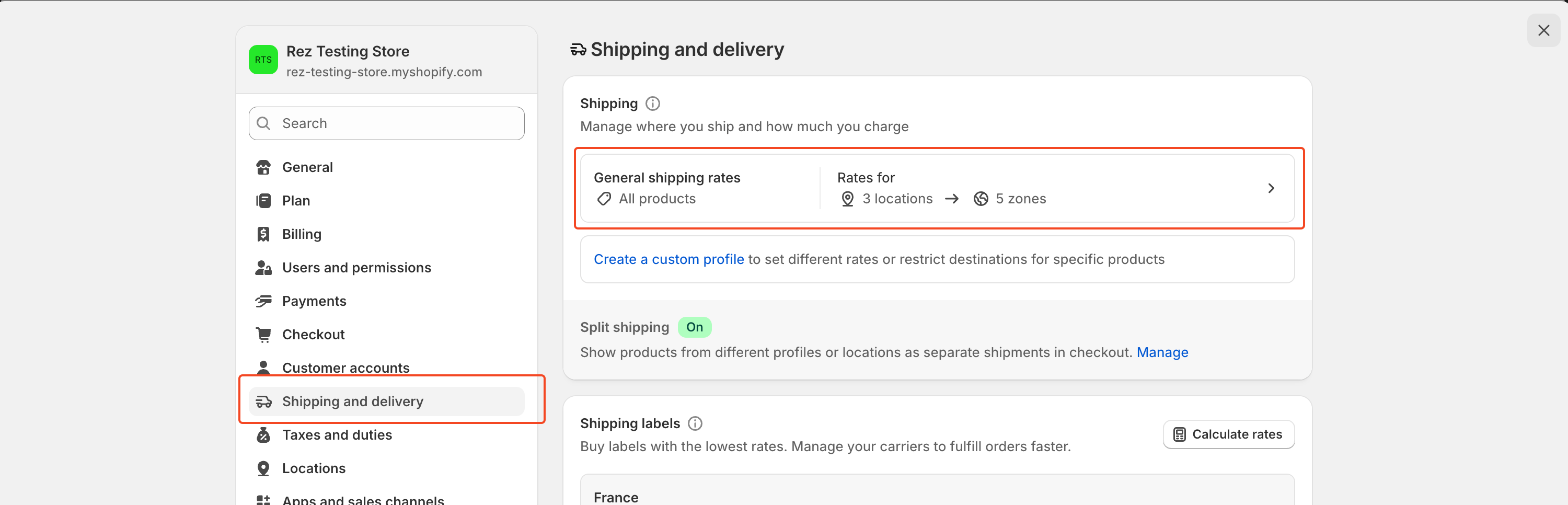
### Step 1: Access Shipping Settings
1. Go to your Shopify admin dashboard
2. Navigate to **Settings** → **Shipping and delivery**
3. You'll see your current shipping setup
 ### Step 2: Create Matching Shipping Zones
For each zone you created in Smart Shipping, you need to create a corresponding zone in Shopify:
1. Click **Create shipping zone**
2. Enter the **same zone name** you used in Smart Shipping
3. Add the **same countries/regions** you configured in Smart Shipping
4. Click **Done** to save the zone
**Zone Matching is Critical**
Your Shopify zones must exactly match your Smart Shipping zones (same name and countries) for rates to work properly.
### Step 3: Add Rates to Your Shipping Zone
For each shipping zone you just created, you need to add Smart Shipping as the rate provider:
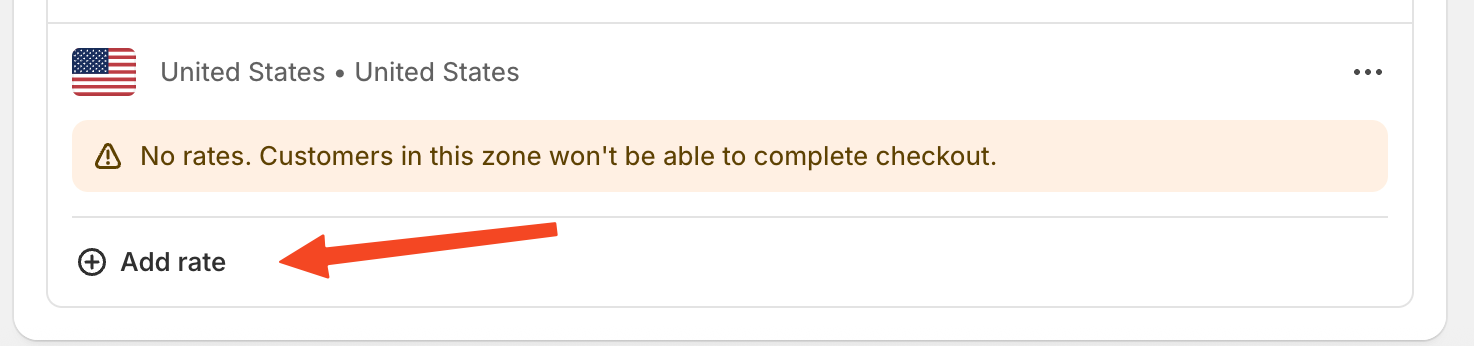
1. Click **Add rate** in the shipping zone
### Step 2: Create Matching Shipping Zones
For each zone you created in Smart Shipping, you need to create a corresponding zone in Shopify:
1. Click **Create shipping zone**
2. Enter the **same zone name** you used in Smart Shipping
3. Add the **same countries/regions** you configured in Smart Shipping
4. Click **Done** to save the zone
**Zone Matching is Critical**
Your Shopify zones must exactly match your Smart Shipping zones (same name and countries) for rates to work properly.
### Step 3: Add Rates to Your Shipping Zone
For each shipping zone you just created, you need to add Smart Shipping as the rate provider:
1. Click **Add rate** in the shipping zone
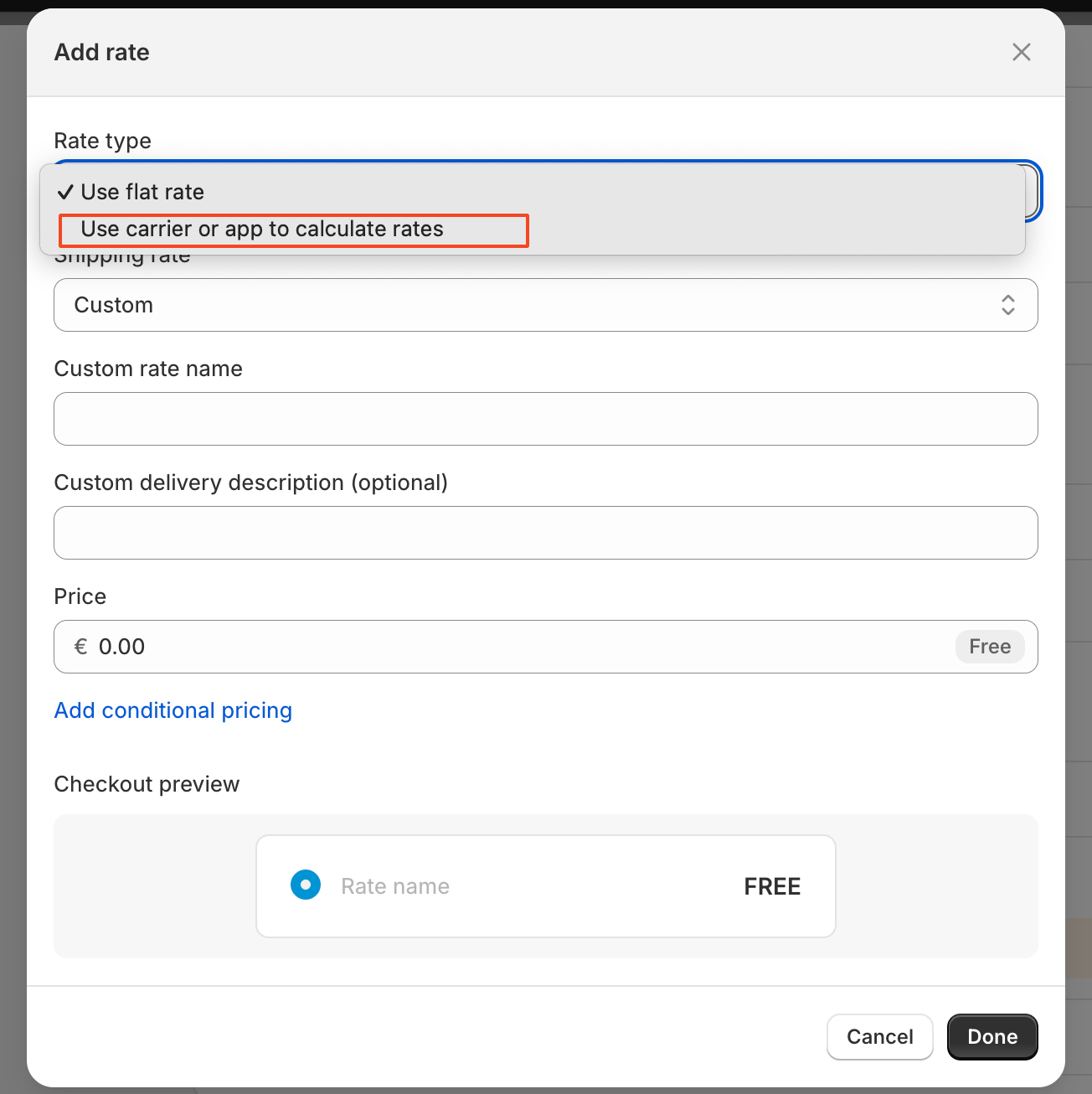
 2. Select **Use carrier or app to calculate rates**
 3. Choose **Smart Shipping** from the available apps list and click **Done**
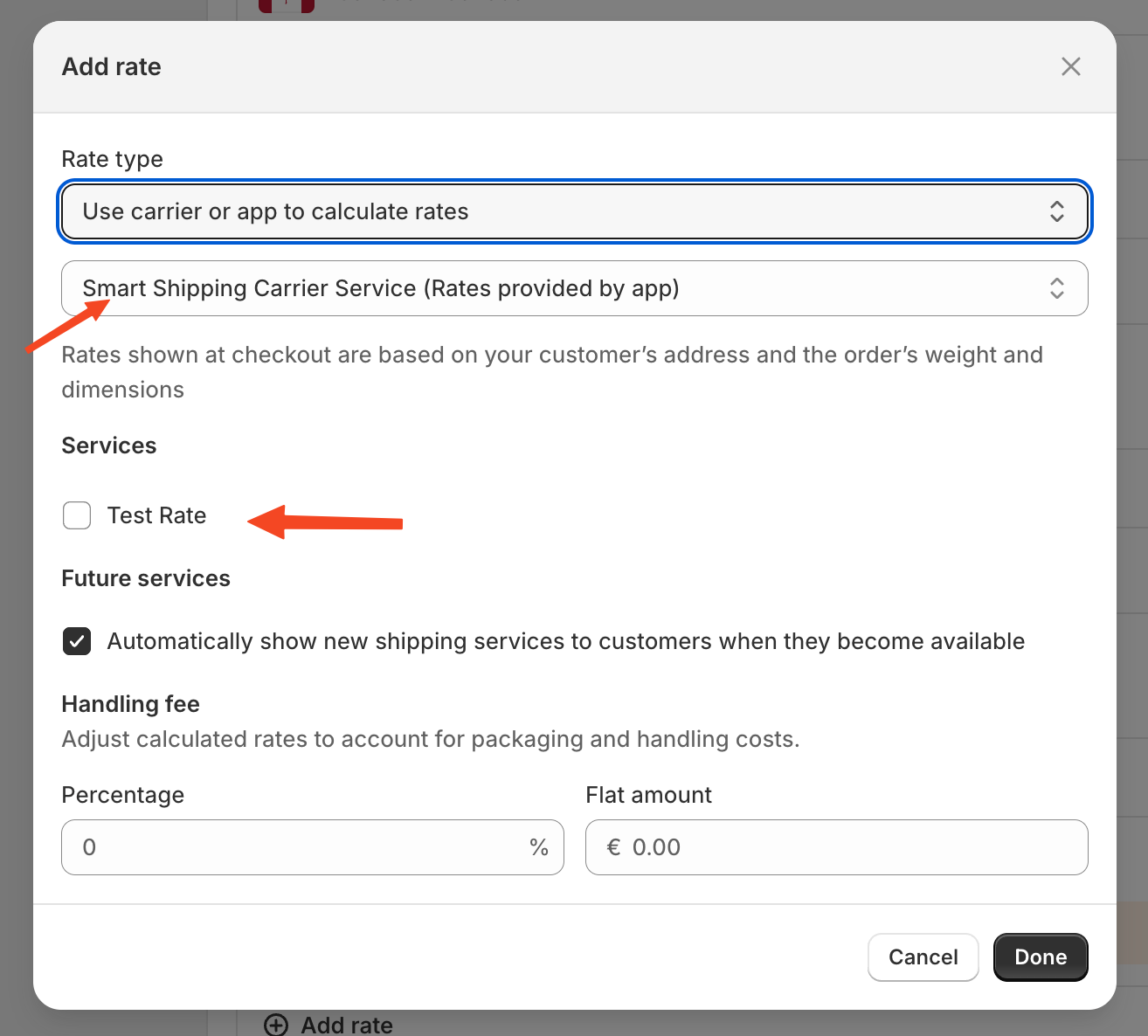 This tells Shopify to use Smart Shipping to calculate rates for this zone.
## Complete Setup Summary
1. Access your Shopify shipping settings
2. Create shipping zones that match your Smart Shipping configuration
3. Add Smart Shipping as the rate provider for each zone
4. Test your setup at checkout
## Common Setup Scenarios
### Single Zone Setup (e.g., US only)
1. Create one Shopify zone called "United States"
2. Add United States as the country
3. Enable Smart Shipping for this zone
### Multi-Zone Setup (e.g., Domestic + International)
1. Create "Domestic" zone → Add your home country → Enable Smart Shipping
2. Create "International" zone → Add other countries → Enable Smart Shipping
### Regional Setup (e.g., North America, Europe, Rest of World)
1. Create each regional zone with appropriate countries
2. Enable Smart Shipping for each zone separately
## Verification Steps
After completing the setup:
1. **Test at checkout**: Add items to cart and go to checkout
2. **Enter different addresses**: Test addresses from different zones
3. **Verify rate names**: Ensure your Smart Shipping rate names appear
4. **Check calculations**: Confirm prices match your Smart Shipping configuration
## Troubleshooting
### Rates Not Showing
* ✅ Verify your Shopify plan supports Carrier Calculated Shipping
* ✅ Check that zone names and countries match exactly
* ✅ Ensure Smart Shipping is selected as rate provider
* ✅ Test in [Rate Sandbox](/sandbox/testing-rates) first
### Wrong Rates Appearing
* ✅ Disable other shipping apps or manual rates
* ✅ Check for overlapping zones
* ✅ Verify rate rules and conditions
## Need Help?
* **Shopify Plan Issues**: Contact [Shopify Support](https://help.shopify.com/en) to enable Carrier Calculated Shipping
* **Smart Shipping Setup**: Use our [Rate Sandbox](/sandbox/testing-rates) to test your configuration
* **General Support**: Contact us through the Smart Shipping app
## What's Next?
Once your zones are enabled in Shopify:
* Your rates are live and customers will see them at checkout
* Monitor your shipping performance in Smart Shipping analytics
* Adjust rates as needed based on customer feedback
This tells Shopify to use Smart Shipping to calculate rates for this zone.
## Complete Setup Summary
1. Access your Shopify shipping settings
2. Create shipping zones that match your Smart Shipping configuration
3. Add Smart Shipping as the rate provider for each zone
4. Test your setup at checkout
## Common Setup Scenarios
### Single Zone Setup (e.g., US only)
1. Create one Shopify zone called "United States"
2. Add United States as the country
3. Enable Smart Shipping for this zone
### Multi-Zone Setup (e.g., Domestic + International)
1. Create "Domestic" zone → Add your home country → Enable Smart Shipping
2. Create "International" zone → Add other countries → Enable Smart Shipping
### Regional Setup (e.g., North America, Europe, Rest of World)
1. Create each regional zone with appropriate countries
2. Enable Smart Shipping for each zone separately
## Verification Steps
After completing the setup:
1. **Test at checkout**: Add items to cart and go to checkout
2. **Enter different addresses**: Test addresses from different zones
3. **Verify rate names**: Ensure your Smart Shipping rate names appear
4. **Check calculations**: Confirm prices match your Smart Shipping configuration
## Troubleshooting
### Rates Not Showing
* ✅ Verify your Shopify plan supports Carrier Calculated Shipping
* ✅ Check that zone names and countries match exactly
* ✅ Ensure Smart Shipping is selected as rate provider
* ✅ Test in [Rate Sandbox](/sandbox/testing-rates) first
### Wrong Rates Appearing
* ✅ Disable other shipping apps or manual rates
* ✅ Check for overlapping zones
* ✅ Verify rate rules and conditions
## Need Help?
* **Shopify Plan Issues**: Contact [Shopify Support](https://help.shopify.com/en) to enable Carrier Calculated Shipping
* **Smart Shipping Setup**: Use our [Rate Sandbox](/sandbox/testing-rates) to test your configuration
* **General Support**: Contact us through the Smart Shipping app
## What's Next?
Once your zones are enabled in Shopify:
* Your rates are live and customers will see them at checkout
* Monitor your shipping performance in Smart Shipping analytics
* Adjust rates as needed based on customer feedback