

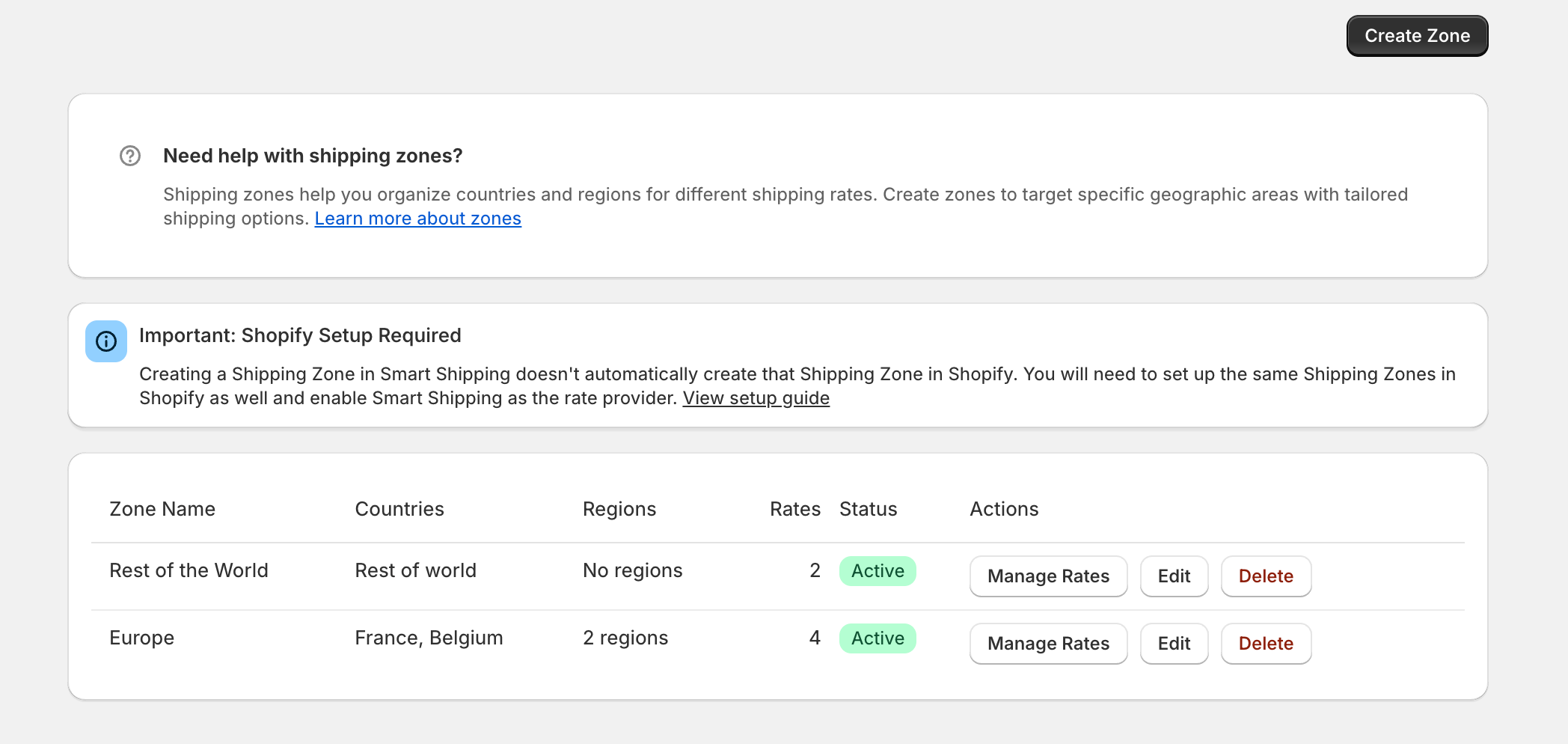
Manage Regions
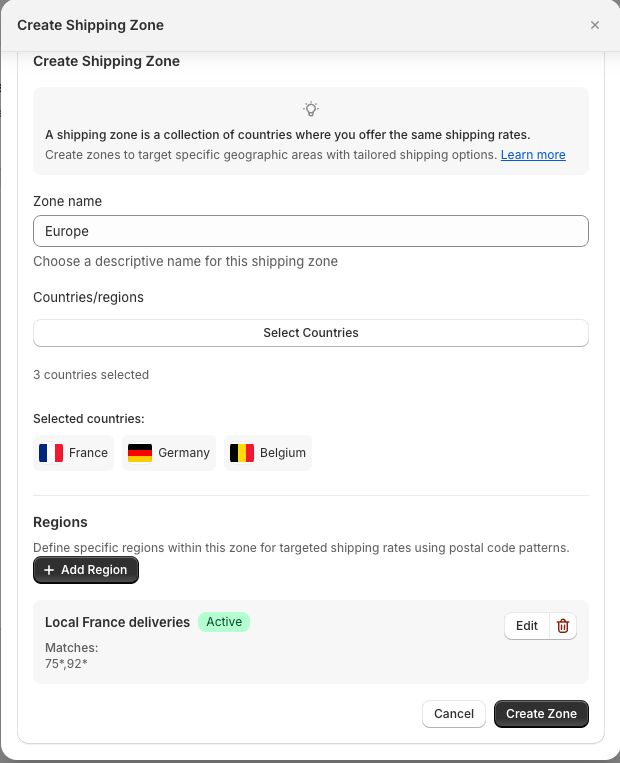
Target specific states or provinces within countries instead of entire countries.What Are Regions?
- US states → US-CA, US-NY, US-TX
- Canadian provinces → CA-ON, CA-QC, CA-BC
- UK countries → GB-ENG, GB-SCT, GB-WLS
- Focus on profitable regions
- Test new markets gradually
- Meet regional restrictions
Regional Code Format
Regional Zone Examples
West Coast Zone
Canadian Provinces
Setting Up Regional Zones
- Create zone with descriptive name
- Add country (US, CA, etc.)
- Add states/provinces using COUNTRY-REGION format
- Set status to Active
- Add shipping rates to the zone
Managing Regional Zones
Monitor performance:- Check Dashboard for region request volumes
- Identify high-performing regions for expansion
- Review low-performing regions
Troubleshooting
Region not matching?- Use format: US-CA (not California)
- Check zone is Active
- Test in Rate Sandbox
- Add shipping rates to regional zone
- Verify zone has active rates
Next Steps
- Add postal codes for local delivery
- Create rates for your regions
- Test coverage